 THEREiS
Title :
Building an Astro Blog #4 - The Journey to Applying a Blog Theme
This page was translated from the Korean original using AI. If anything reads oddly, please refer to the original. Read the Korean original →
I was busy with the Home Secretary project, so I never got around to writing the post about putting a theme on my Astro blog. I started more than I could finish, and now I’m back to bring this situation under control, so let’s get the theming work going.
You don’t put a theme on your blog. You put your blog on a theme.
With Astro, it’s more accurate to say you apply your blog content to a theme than that you apply a theme to an existing blog. The posts are written in Markdown or MDX (Markdown with JSX) anyway, so each page stands on its own. Just moving the posts over is no different from applying the theme.
At first I also tried to apply a theme to my blog, but porting the theme’s features and styles one by one took so much work that I gave up. In the end, I decided the right move was to keep the theme as-is and move only the content.
I created a branch in the git repository of the sample blog I’d built last time and put the theme on top of it there.
git branch feature/change-themegit switch feature/change-themeThis creates a new branch and switches to it.
Next, find a theme you like and apply it by running the commands below.
git remote add theme https://github.com/author/theme-repo.gitgit fetch themegit merge theme/main --allow-unrelated-historiesThis causes quite a lot of conflicts with the existing source. I chose fuwari as my theme.
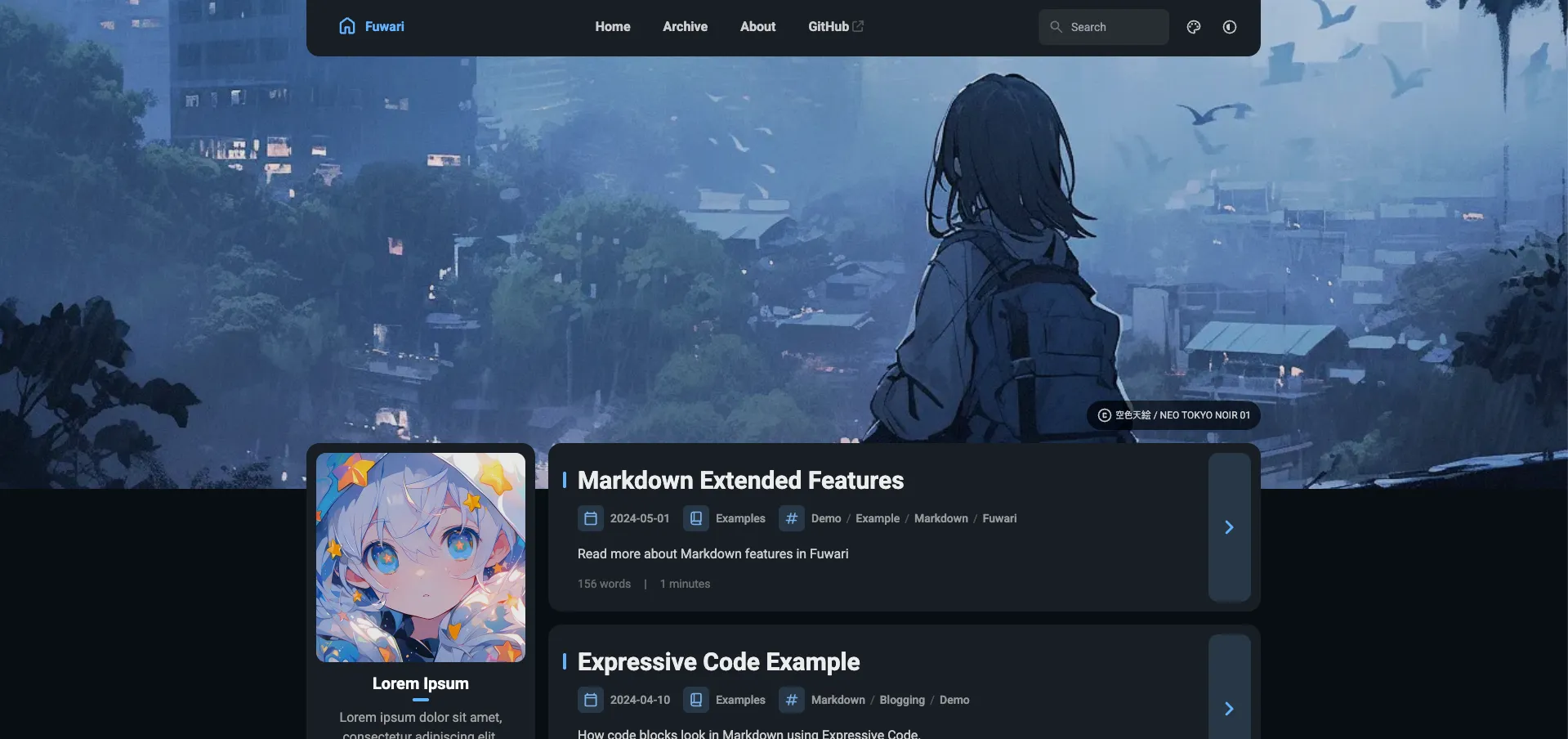 (Screenshot of the Fuwari theme)
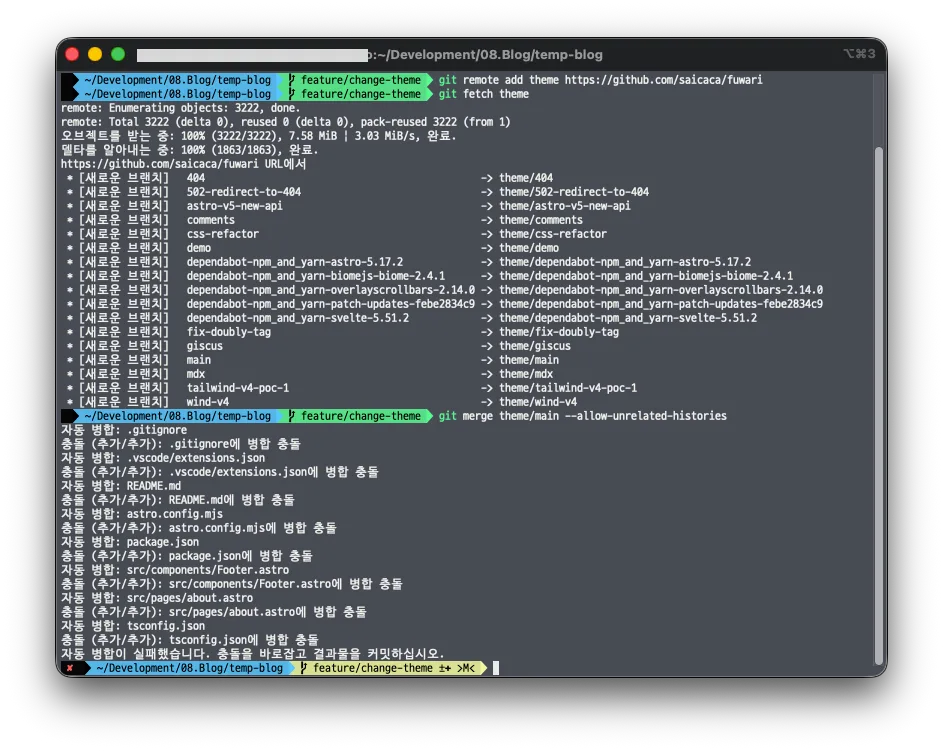
No need to panic over the conflicts. For every conflicting config, layout, and component, just take the theme’s version.
git checkout --theirs . # take the theme's version of conflicting filesgit add . && git commit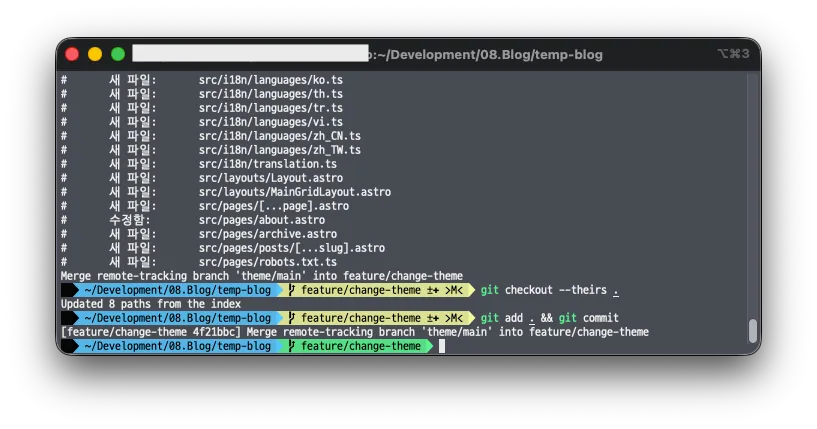 Some vim editor popped up and listed all the files being merged. I’ll clean up the conflicting files soon enough; for now, let’s sort out and manage the dependencies.
rm -rf node_modules package-lock.jsonnpm install # halfway through installing, it told me to install pnpm, so I installed pnpmnpm insatll -g pnpmpnpm install # reinstall the packagesnpm run dev # check the screennpm run build # check for build errors (schema errors show up here)Seriously, partway through, the Fuwari theme threw an error saying I had to use pnpm, so I had no choice but to install pnpm too. After that, installing the dependencies finished as shown below.
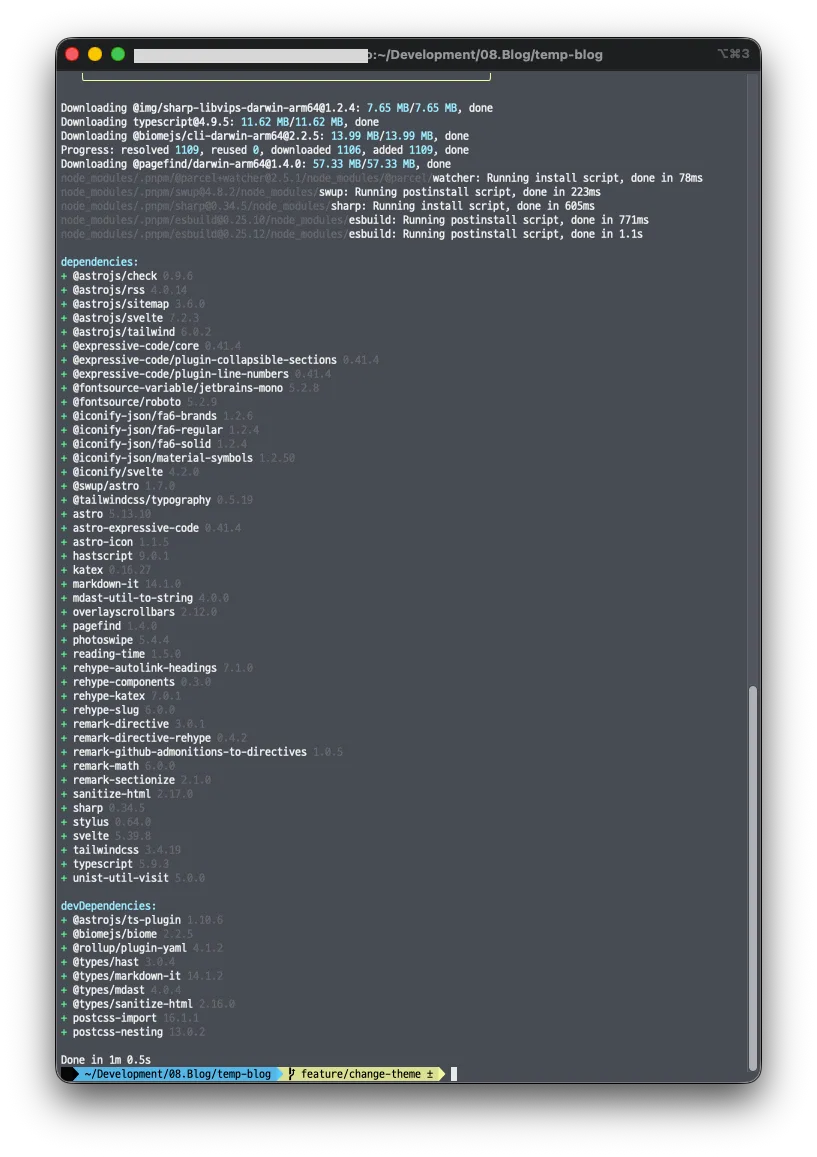 Now let’s check whether it works properly.
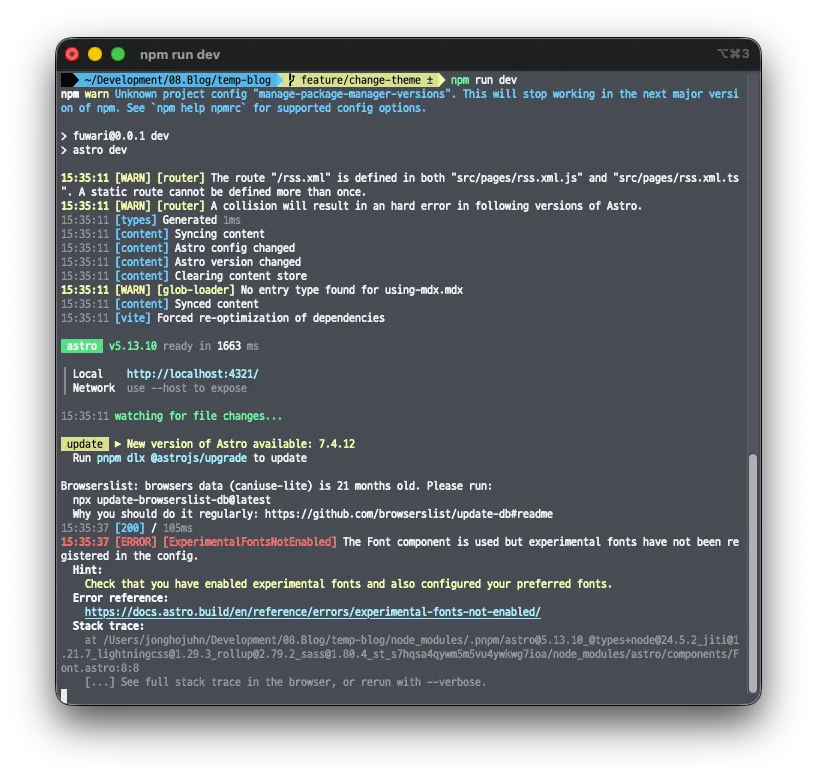 Right. Nothing ever works on the first try. Let’s solve the problems one at a time.
Looking at the cause, this theme is built on Astro 5, while the Astro I installed is version 7, so the Font feature wasn’t working properly. The real problem was that files that only existed in the starter didn’t overlap with the theme’s files, so they survived the merge untouched. Among them,
src/pages/index.astro was taking over the / route instead of the theme’s [...page].astro. That file loads BaseHead.astro, and I confirmed that the <Font> inside it was throwing the error. Damn it.
Let’s fix the problems one by one.

First, I removed the files I didn’t need.
git checkout -- package-lock.json # revert the changesRevert the changes.
git rm -r \package-lock.json\.vscode/launch.json \public/favicon.ico \public/favicon.svg \src/assets/blog-placeholder-*.jpg \src/assets/fonts \src/components/BaseHead.astro \src/components/FormattedDate.astro \src/components/Header.astro \src/components/HeaderLink.astro \src/consts.ts \src/content.config.ts \src/layouts/BlogPost.astro \src/pages/blog \src/pages/index.astro \src/pages/rss.xml.js \src/styles/global.css \src/content/bloggit commit -m "chore: remove leftover Astro starter files"Commit the deletions to git. Then install the packages again.
pnpm installpnpm devAnd run it again.
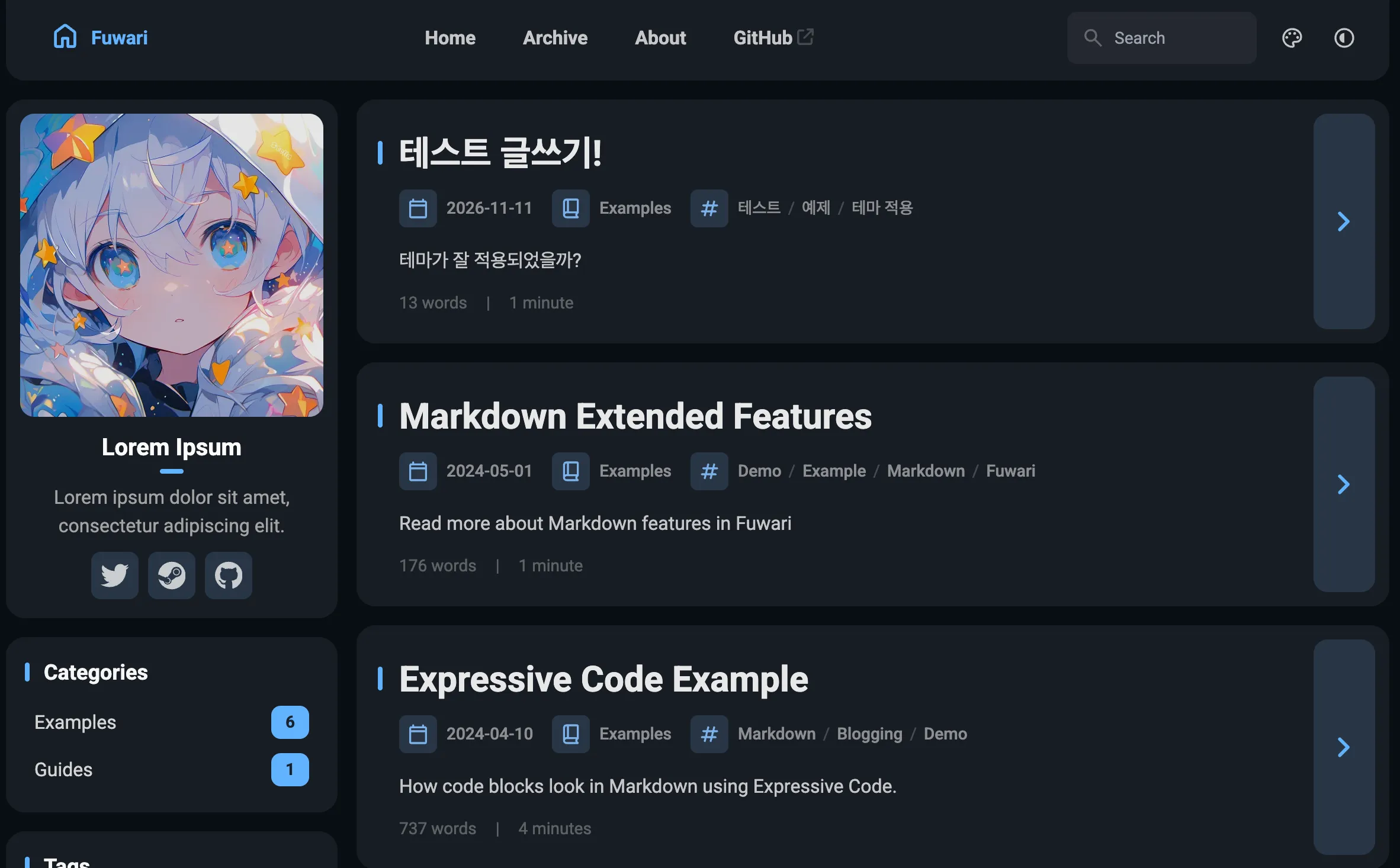
I wrote a test post too, and confirmed that the theme was applied correctly.
Now let’s merge into the main branch. Oh, before merging, let’s run a build to make sure everything will merge cleanly.
pnpm buildIt worked.
git switch mastergit merge feature/change-themegit log --oneline -5 # check the result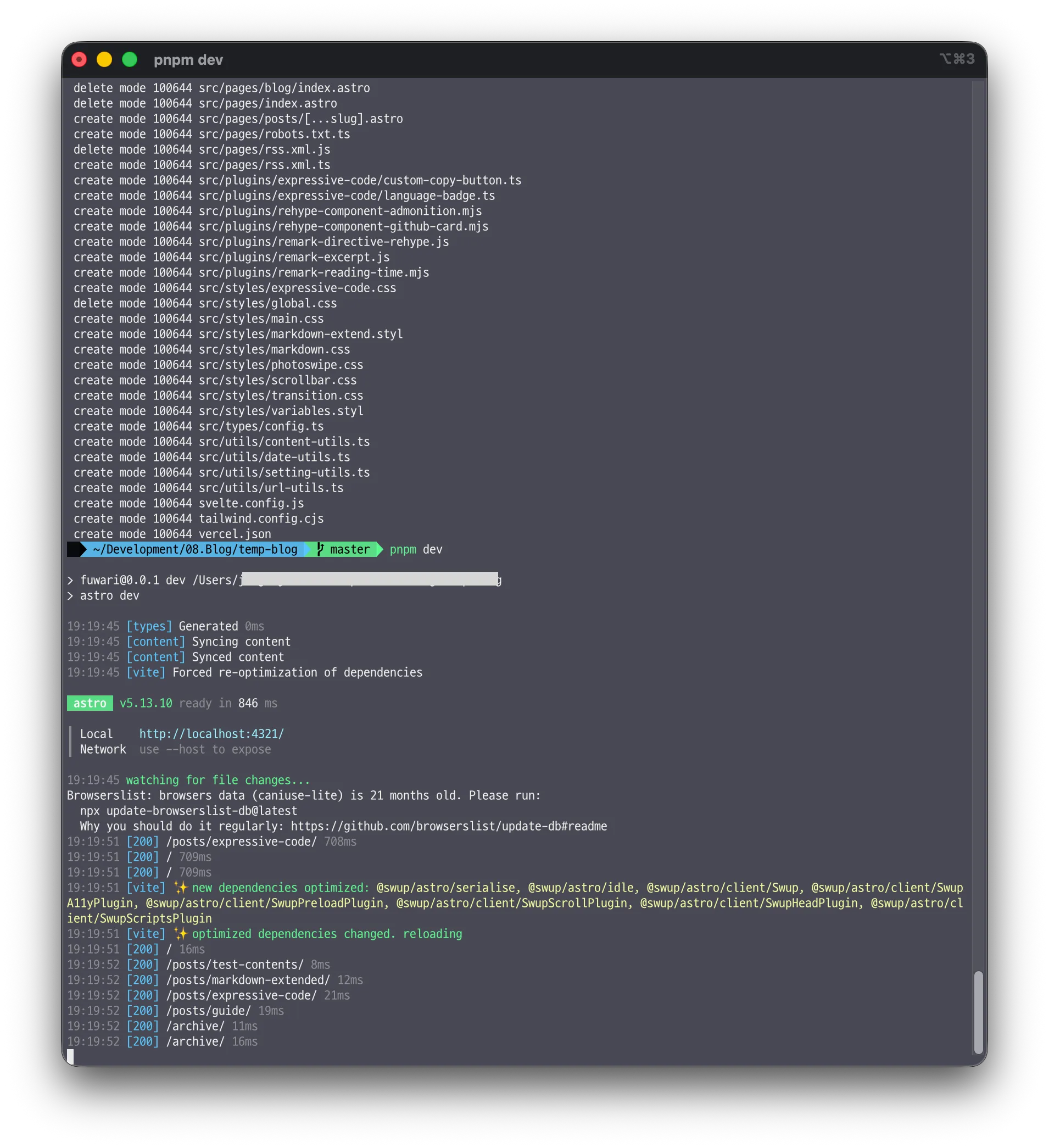 It works.
Honestly, applying a theme was not an easy job. Especially merging two different Astro versions like this time, you never know what’s going to break. So when you apply a theme, try it when the theme is on the same version as your blog, or only slightly different.
Or just build your own theme, like I did.
This post isn’t really meant to be followed step by step. I wrote it so you can see and understand the whole process: branching off with git, applying the theme, and merging back into the original branch. If you run into the same problems, I hope it helps.
That’s the end of building a blog with Astro!
Bye!!

Loading comments...